Computerized Accounting Software

When you listen term “computerized software”, maybe you think it is a non-useful term and any software means computerized but, vise versa:

there are there types of software:

  1. Normal (without any smart modules) like notepad software
  2. Computerized software that it will calculate some of works and it will do it automatically without need any actions from users
  3. Full Smart that it will do more than 90% of works automatically and in a smart ways like robots programs

computerized accounting vs normal accounting software

An accounting software could be fully under control of user with manual functions or with automatic modules and smart functions.
for example if an accounting software will generated and post double entry of invoices automatically same time when user enter items of invoices, then it is a computerized accounting software. power of computerized is related of how many of functions will do by accounting program automatically.
some of accounting software will do low quantity of financial functions but some of other software will do most of financial calculation.

Computerized structure if iGreen accounting

In iGreen accounting, we are tried to put the most functions and modules in automatic status. for example when you open an invoice and enter sold items, financial functions that will by iGreen accounting will be:

  • Journal Double entry
    • A standard sales journal will be post
  • Account balance of buyer (AR of customer)
    • Account of customer will be debit as amount of invoice
  • Cash amount of cashier
    • Cash account will be credit as amount of received cash from customer in cash sales
  • Amounts of sold items in stores
    • Amount / quantity if sold items will be less from item inventory
  • Profit calculation of sold items
    • Profit and loss statement will be updated
  • Cheques in banking
    • If any received cheque, it will be added to cheque book inventory
  • POS account of card payment by customer
    • If any card payment, its amount will be added to POS bank account
  • VAT calculation and its voucher
    • It will calculate 5% of sold amount and it will be added to VAT account
  • Salesperson commission
    • It will calculate commission of salesperson regard to sold items and salesperson commission percentage

More link: Download and use iGreen accounting software, Click here

Custom software

Some of businesses in Dubai, and other cities in United Arab Emirates need special window applications for their account and sales departments.

It can include special formulas of profit calculation or warehouse counting or everything else that you could not find it in current existing software in the software shops in Dubai. but don’t worry, you can order it as you want to us.

Custom modules

We will analyse it and after designing it in graphics and data processing , then we add it to iGreen accounting software as new section specially for your company

Barcode labels for Items

If you have a shop like mobile store, toys store, drug store, cloth shop, electronic store, home appliances shop or any similar shop, so that you would like to have barcode labels on items in your shop to help salespersons to sell items more easily and also protect your business from loss.

in iGreen accounting, it is possible to print bar-coded label automatically when you enter purchase in it. also it is possible to print purchase prices of items in secret format to help salesperson about purchase prices of items and let they know how much discount is possible of every item

How to get started

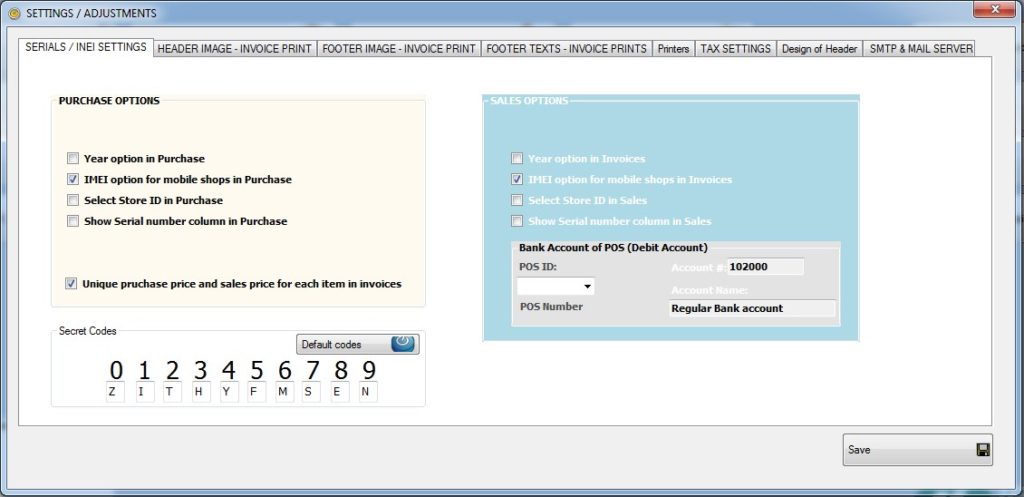
first of all, open Setting form and select “SERIALS/IMEI SETTINGS” as below:

IF Unique Purchase price .. option is not active, Please active it by check marking it like below photo:


if buttom of setting form, you see “Secret codes”. these codes will use to generate purchase price of items on barcode labels.

Why secret codes

  • Only salesperson should know it not customers
  • Secret formatted prices help salesperson to protect them to sell item under purchase prices
  • Salesperson don’t need to ask minimum prices from administration time to time

therefore, as you see, here to should select character for any digit, for example based on default selected character, 240 USD will be printed on label as : TYZ

because: T = 2 , Y=4 and Z = 0, so that 240 = TYZ

also because you can change these default codes, then only you and your salespersons will could re-understand which digit mean every character

Example of barcode label

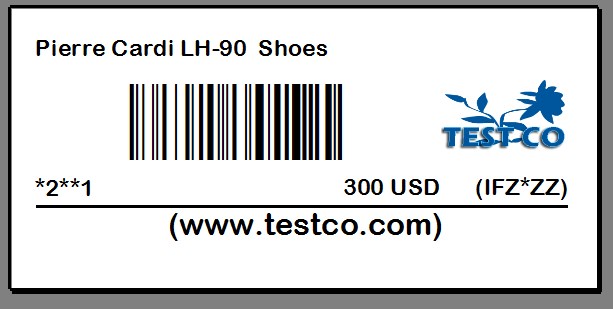
As you see we put an item of Pierre cardian shoes with 150$ purchase Price and 300$ sales price. Printed label for sticking on the item will be as below:

As you see purchase price (150$) has been codes as IFZ*ZZ

I = 1, F=5, Z=0, *=.  => 150.00$ purchase price

Also when we in invoice scan this barcoded label, iGreen will bring it in list as below with 300$ price for sale


Finally, you can see profit report of this invoice as below:

We bought Shoes for 150$ and sold it for 300$, so that its profit is 150$ as you see on above profit report

TICKET ISSUE ENTRY

Tickets are the best products that any air agency could offers to its clients and air passengers

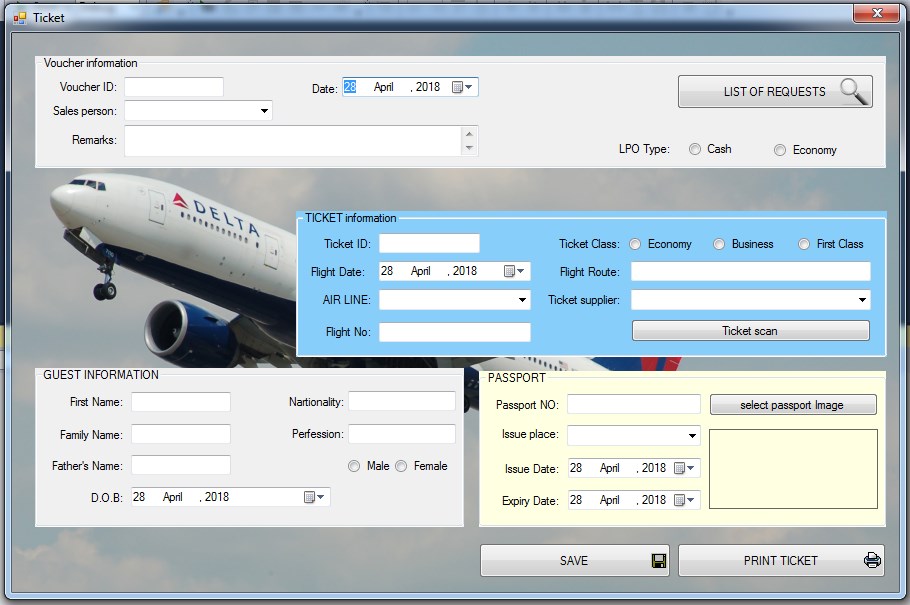
in iGreen, ticket entry form includes 3 sections:

  • Ticket Voucher
  • Ticket information
  • Passenger information
TICKET FORM

Ticket voucher

This section includes related information about accounting voucher of ticket as Date, Remarks, sales person and LPO type

Note:

  1. You can adjust as sales commission for your salesperson of ticket
  2. LPO mean letter purchase order and client can pay for it by cash or later on credit account

Ticket information

This section includes the most important information of ticket as: ticket id, date of flight, flight no, air line, path of flight (route), class of ticket (Economy, Business class, and First Class) , and ticket provider

Passenger information

This part of ticket entry form includes any information about passenger like: Name, Last name, Passport no, Date of issue and expiration of passport, and also you can upload scan of passport here and it is as visa entry form

READ MORE

Back to Main page

VISA ISSUE ENTRY

In the realm of air travel agencies, it is common practice to provide customers with visa and air ticketing services. However, at iGreen IT Infrastructure , we take it a step further by offering a comprehensive visa entry form that includes three distinct sections.

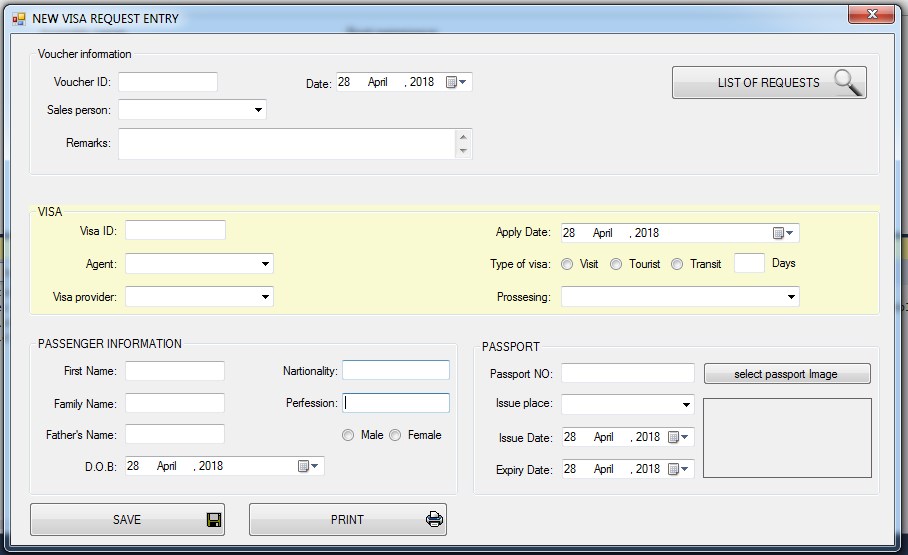
These sections are as follows: 1- Voucher information 2-Visa information 3-Passenger information.

By breaking down the visa entry process into these three sections, we are able to provide our customers with a more streamlined and efficient experience in travel agency module of iGreen software. The voucher information section allows for easy tracking of payment and ensures that all necessary fees have been paid. The visa information section provides a detailed breakdown of the visa application process, including required documentation and processing times. Finally, the passenger information section collects all necessary personal information, ensuring that the visa application is submitted accurately and efficiently. At iGreen, we strive to provide our customers with the highest level of software with travel agency module, and our comprehensive visa entry form is just one example of how we achieve this goal.

Visa entry form

Visa voucher

In this section, you will find essential information regarding visa voucher in iGreen software. This includes VISA number, the agent who assisted you, the visa provider, the date of voucher, the type of visa applied for (Normal, Urgent, or Top Urgent), and the type of proceeding in immigration. It is crucial to have these details readily available to ensure a smooth and efficient voucher for visa application process in iGreen software.

This section includes related information about accounting voucher of visa as Date, Remarks, and sales person

Note: You can adjust as sales commission for your salesperson of visa

Visa information

This section includes the most important information as VISA no, agent, visa provider, date of apply, type of visa (Normal, Urgent, and Top Urgent) and type of proceeding in immigration.

Passenger information

This part of visa entry form includes any information about passenger like: Name, Last name, Passport no, Date of issue and expiration of passport, and also you can upload scan of passport here

READ MORE

Back to : Main page

Income Statement

Every small business and shop has profit from its sales. when a shop buy an item as purchase price and sell it, so that you should wait for a sales profit. report of sales profit is known and popular near accountant as name of Income statement. Statements of income as net profit and gross profit are survival for any manager. Low income will closed a shop or business and vise versa.

Net profit = Income – expenses

Note: sales profit is not always positive and when a sales with price under purchase as clearance event is negative profit as name sales loss

Sample of purchase and sales of an item

As in this sample photo, you can see we buy a watch 100AED and sell it as 150AED , so income of this sales is 50AED

Importance of income statement

Report of low income is a red line warming for account department to inform director manager for a suitable economic decisions. A decision to reduce expenses and increase sales to reach more profits.

Income statement in iGreen software

iGreen software calculates income statement as sales profit instantly after any sales entry. you can access to this report from home screen by click on button “INVOICES PROFITS”

After click on this bottom, you will see a report as below:

Sales profit report

You can find reports related to income statement as below:

  • Invoice profits
  • Items profit

All these reports could be run in a selected date

For example, you can run invoice profits for date of today and it will show you only invoices of today

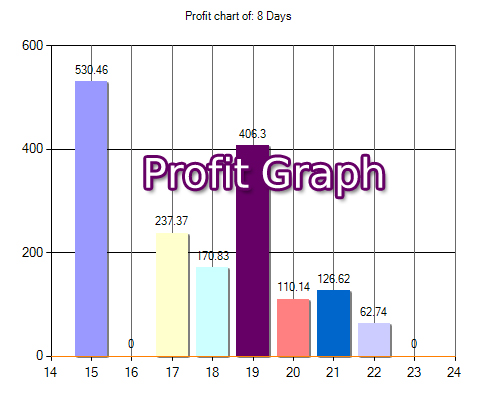
Also this report will show you a graph to show how was days profits and which days are the best with top profits. this will give you an easy visual view of profits report.

STOCK INVENTORY MANAGEMENT WITH IMEI TRACKING

For any mobile phone store, smartphone inventory management is very important. Some smart phones like iPhone 16 pro, iPhone 15, iPhone 7, iPhone 8, Samsung Ultra 24+, Samsung Note 8 are very expensive and losing such items will be a big loss for business owners. However, an inventory system with imei serial number tracking is a must-have software for any mobile store.

Get Started

At the time of purchase entry, scan IMEI bar-code of all mobile one by one and then click on save. iGreen software will record all IMEI bar-code in high manner. also it alerts you if any IMEI is repeated in invoices or purchases, and it doesn’t allow your data operators to repeat it in mistakes because each IMEI barcode is unique in the rest of world.

Active IMEI option in purchase entry & invoicing

Note: In the settings form in the green software, select IMEI in purchase and sale so that it is activated in the invoices (according to the picture below)


IMEI setting form

Purchase entry of smartphone with IMEI

In purchase entry form, you can scan IMEI bar-code of smartphones (as below photo)

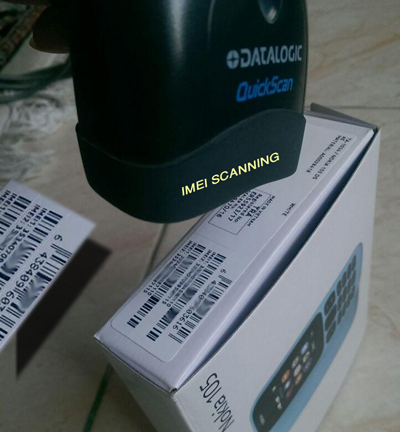
Purchase entry with IMEI scanning

It is very easy to issue and print invoice of smartphones sales quickly with scanning IMEI barcode if you saved purchase entry with IMEI barcode before.

Note: When you scan an IMEI barcode, quantity of item will be 1 and you could not change it Because IMEI barcode is unique per one mobile or smartphone in rest of the world

Invoicing with IMEI Barcode

Only click on [Invoice] button in central screen of iGreen software and after you select date, and customer, in IMEI column,  (with barcode scanner) scan printed IMEI label on smartphone box. then iGreen software shows information this item and its sales price.

Invoice with IMEI scanning

Inventory Tracking with IMEI Serial Number

The green software records all purchases and sales of smartphones along with the IMEI number. The IMEI number for every mobile phone is unique in all parts of the world, like a fingerprint or a human eye scan. In fact, according to an international naming agreement, every mobile phone manufacturer is obliged to register a completely exclusive and non-repeating serial number for each of their phones. Considering this issue, tracking mobile phones using IMEI number is an ideal way to control the inventory of a mobile phone store. and this is important to know IMEI number has been saved in core of central IC of any mobile and it could not been changable. so it is a great way to use it for tracking pourposes.

How to Track IMEI Serial Number

To view turnover of any smartphone by IMEI number, please click on top menu and select [ IMEI / SERIAL NO TRACE ]. then you will see a form as below:

IMEI number tracing

Stock Inventory Control by IMEI S/N Tracking

Control of smartphones inventory by IMEI scanning is very easy, to do it just in central screen of iGreen, click on [Inventory report by IMEI] and you will see a form as below:

Report of Inventory by IMEI

Report mobile store with IMEI S/N

As you see, it will show you all smartphones that are exist in stores, but it is need to re-check this list with your counting list of paper, bring all smartphones on your desk near barcode scanner and then scan IMEI on their box one by one then iGreen will search that IMEI and if found, it will mark that IMEI in list when you finish all smartphones and then you can see list of iGreen is equal to quantity of smartphones in your shop or not you can see boxes of:

  • [Checked IMEI]
    • IMEI that you scanned and exist in this list
  • [NOT Checked IMEI]
    • IMEI that you didn’t scanned but exist in list of iGreen

at the end of scanning, click on print to print this report with green marks of checked IMEI smartphones

Print of Inventory by IMEI

Cash Payment Entry

Cash payment to suppliers or vendors is for settlement of purchase vouchers. so that you should use cash payment form to enter these types of vouchers.

Before to start cash payment entry, please keep it in mind, usually supplier receive cash. it means supplier account will be debit for amount of paid cash to them.

For example:   lets suppose you have a supplier with name: “B”

You paid 200$ to supplier B also, so that vouchers of these payment and receipt in iGreen will be as below:


Supplier B    200$ Debit

Cash Account                     200$ Credit


for cash account, term “debit” means cash went out  and  term “Credit” means cash came in and added.

therefore, when you pay cash, account of cash will be credit.

How to enter cash payment in iGreen

Please from dashboard screen, click on button [Cash Payment] and then you will see a from as below:

As you see, in this form, after you click on button [New voucher], it generate a new voucher number as CP-.. ,

“CP-” is summary of Cash Payment and it is better you don’t change it. System ID is a not changeable by you and it is a unique ID in iGreen for systematic use and report.

Cash Account to Credit

It is important section,

  • if you pay cash by money (Coins and money notes), it should be Petty cash account or cash in hand
  • if you deposit this amount by money wire (bank transfer), you should select bank account.
    • to select bank account enter 0 (zero digit) in text box “Account #:” and press enter, so that iGreen will show you chart of account to select any account that you want

in below section, you will see a table that includes:

  • Payee ID:  account of supplier in iGreen
  • Payer Name:  name of supplier
  • Commnets:  any commnets or description that you should keep here for future use and reports
  • Amount:  total amount that you paid to supplier as above selected

Example of Cash payment to suppliers in Money notes

Here is an example of AED100 that we pay to supplier A by money note (Cash payment)

Example of Cash payment

Note: we selected Account #: 10100 [Cash on Hand] because we paid from cash on our cashier box.

Result: Account statement of supplier A got 100$ debit and cash account: 10100 got 100$ credit amount in reports

Example of bank deposit to supplier bank account

Here is an example of AED350 that we send it by money wire to supplier bank account.

Example of Bank deposit to supplier

Note: we selected Account #: 102000 [Emirates NBD] because we deposited from this bank account directly

Result: Account statement of supplier A,  got AED350 debit and Bank account: 102000 got AED230 credit amount in reports

Posted in غير مصنف

Cash Receipts Entry

Sometimes, some of  customers and also some of clients pay amount of cash to you. so that you should use cash transactions form to enter these types of vouchers.

Before to start cash receipt entry, please keep it in mind, usually customer pay cash. it means customer account will be credit for amount of paid cash by them.

For example:   let suppose you have a customer with name: “A”  and a supplier with name: “B”

Customer A paid 100$ to your shop, so that vouchers of these payment and receipt in iGreen will be as below:

Customer A                                     100$  Credit

Cash account            100$ Debit

for cash account, term “debit” means cash went out  and  term “Credit” means cash came in and added.

therefore, when you receive cash, account of cash will be debit

How to enter cash receipt in iGreen

Please from dashboard screen, click on button [Cash Receipt] and then you will see a from as below:

Cash receipt form

As you see, in this form, after you click on button [New voucher], it generate a new voucher number as CR-.. ,

“CR-” is summary of Cash Receipt and it is better you don’t change it. System ID is a not changeable by you and it is a unique ID in iGreen for systematic use and report.

Cash Account to Debit

It is important section,

  • if you receipt cash in money (Coins and money notes), it should be Petty cash account or cash in hand
  • if you receipt cash in bank account by money wire (bank transfer), you should select bank account.
    • to select bank account enter 0 (zero digit) in text box “Account #:” and press enter, so that iGreen will show you chart of account to select any account that you want

in below section, you will see a table that includes:

  • Payer ID:  account of customer in iGreen
  • Payer Name:  name of customer
  • Commnets:  any commnets or description that you should keep here for future use and reports
  • Amount:  total amount that you receipt from customer as above selected

Example of Cash receipt from customers in Money notes

Here is an example of 100$ we received from Customer A

CASH RECEIPT EXAMPLE

Note: we selected Account #: 10100 [Cash on Hand] because Customer A paid to us one 100$ note o money

Result: Account statement of Customer A got 100$ credit and cash account: 10100 got 100$ debit amount in reports

Example of Cash receipt from customers by bank deposit

Here is an example of AED250 we received from Customer B as he deposited it to our bank account [Emirates NBD] bank

Cash receipt from customer by bank deposit

Note: we selected Account #: 102000 [Emirates NBD] because Customer B deposited this amount of cash to our bank account

Result: Account statement of Customer A got AED250 credit and Bank account: 102000 got AED250 debit amount in reports

Posted in غير مصنف

Report of Invoices profits

By use unique pricing system of items ( UPSI ) in iGreen software for your business in United Arab Emirates, every item  will be traced by purchase price and sales price exclusively and it will cause to calculate sales profit without any mistake or margin, better than FIFO, LIFO and average profit systems.

In any shop, sales invoices will show profits of that shop.  so that, more invoices, mean more profits for the shop.

To have accurate profit report of invoices, iGreen includes a price label system.

What are price labels in iGreen

iGreen could mark all items one by one by purchase price and sales price. so that any item has a unique bar-code label. at sales time, you can read purchase price of that item and decide about sales price without confusing with other purchase prices. it means if you buy same model of an item with different prices, iGreen will mark all items with its purchase prices one by one.

How to mark purchased item with price label

When you enter purchase vouchers, beside SAVE button, there is an option as “Price label” as it shown in below photo:

Price bar-code option purchase

With put price barcodes on items in shops, then you can issue sales invoices very easy and profit report of your items are very accurate. As you see in below photo, we selected invoices of last week and it wil show us in a last and in a Graph as profit report.

Profit Report of Invoices

In graph report you can easily recognize the day with the most profits

Next Link: