Profit of sales is one the most wanted reports for business owners and specially for shop owners. when you issue an invoice or bill, it is very nice to be able to see the profit instantly.
iGreen accounting has an advanced module that could calculate sales profit (also sales loss) instantly after posted invoice. actually iGreen will calculate all beginning inventory and current inventory of a product and then will calculate profit regard to invoices of same product
Example of income statement in iGreen
You have a shop of home appliances in Dubai, U.A.E and you have a purchase and sales as below
You purchased 10 pcs vacuum cleaner for USD 210
You sold one pcs for USD310
then you got USD100 profit for this sales. now let’s see how iGreen accounting software show profit sales of this item
Report of Sales Profit
As you see, this easy to understand report will help you to see profit of sales without need to know accounting and it is very suitable for shops owner that they wouldn’t like to hire an accountant and want to manage their shop their-selves in Dubai
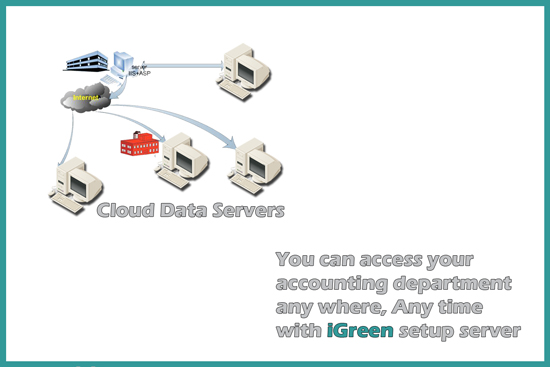
Online accounting software are the best solution for managers of businesses in Dubai to have freedom from their accounts departments with access to it any where and any time. Online accounting via online portal needs a server with 99% up-time and inside a cloud accounting needs a cloud server with a acceptable speed.
Both of these servers have big charges annually but you have another option with minimum charges and the highest speed. it is local software with online data server.
iGreen accounting has options to let you select local server or a free online server to locate accounting data. therefore, you only need to pay only for a data-server as name SQL server annually but you have an online accounting software for your small business in Dubai or any city in GCC countries for free without payment for a dedicated server or cloud server.
Charges of online accounting
Online portal on dedicated server : 700 AED (monthly) x 12 Cloud server : 500 AED (monthly) x 12 SQL Server : (One user) : 50 AED x 12
Note: when you use one user SQL server, then iGreen can create unlimited company on data server therefore before buy a data-server , please check how many database you can create on your server per users.
Data server of iGreen accounting
If you have old version of iGreen accounting, or you don’t have iGreen accounting software, Please download it
Install iGreen accounting
in Upper menu, please click on [setting] and then click on [Dataserver]
Access to menu of data server setup
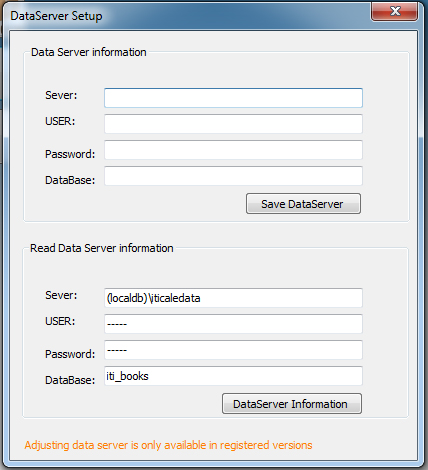
Then you will see a form as below
As you see, in up section, you should enter information of your SQL server as
IP or domain of server
Data server adjustment in iGreen
USER ID
Password
Name of Database [optional]
When you click on [save Dataserver] then iGreen Accounting software will create a database on your server and you can start your accounting as online accounting
Note: anywhere and on any PC, you can run iGreen accounting and when you enter these information, so that you will see all posted invoices and vouchers of your small business or medium size business and it means you can access your accounting online and for free without need to pay for a portal annually.
Usually accounting software is not free and it costs from $100 to more than $2000. and if you found an accounting software free without any payment, so that it has a cause for its free price.
some free accounting software are limited to basic features and some of them have ads inside their screen.
iGreen accounting is a free accounting software for your small business.
Why iGreen is free?
We will accept custom software but our customers need to check our designed software and it is their right to know quality and honesty of our team and also we could not give designed software for our existing clients to new clients as privacy policy. therefore, We have designed iGreen accounting with full feature as real sample of an accounting software to allow you use it for your accounts department for always and free without limitation.
How we have incoming ?
some of iGreen accounting’s users after using iGreen accounting and when they got trusted about the quality of our software, maybe they need some special changes in iGreen or they want to order a new custom software for their businesses. then they will easily order to us as trusted software company.
is limited iGreen accounting ?
No, iGreen accounting software has no limitation in quantity of invoice entry or anything else but you use it as you see it in first day and you can order changes or new form for it if you pay as you issue a new bill for your order.
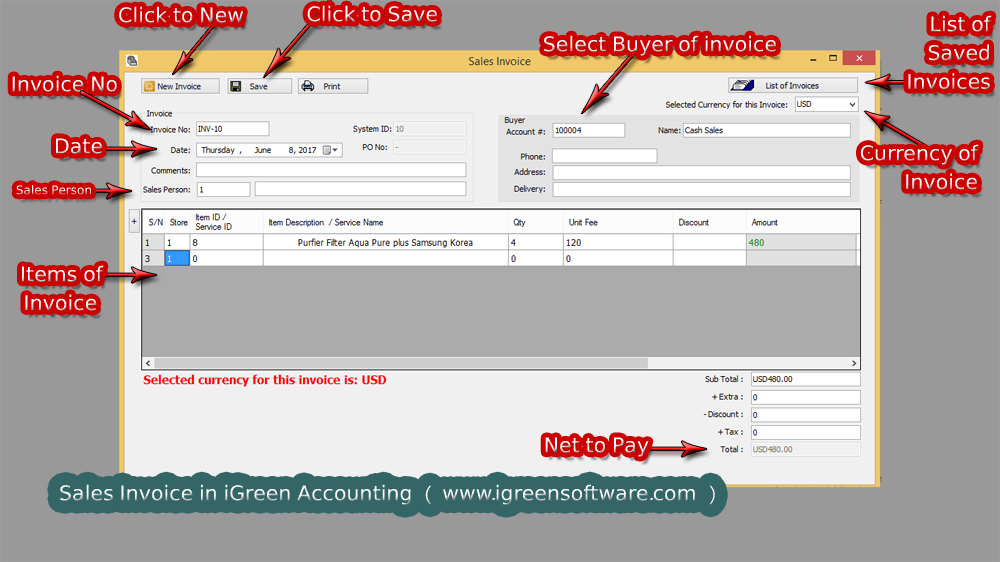
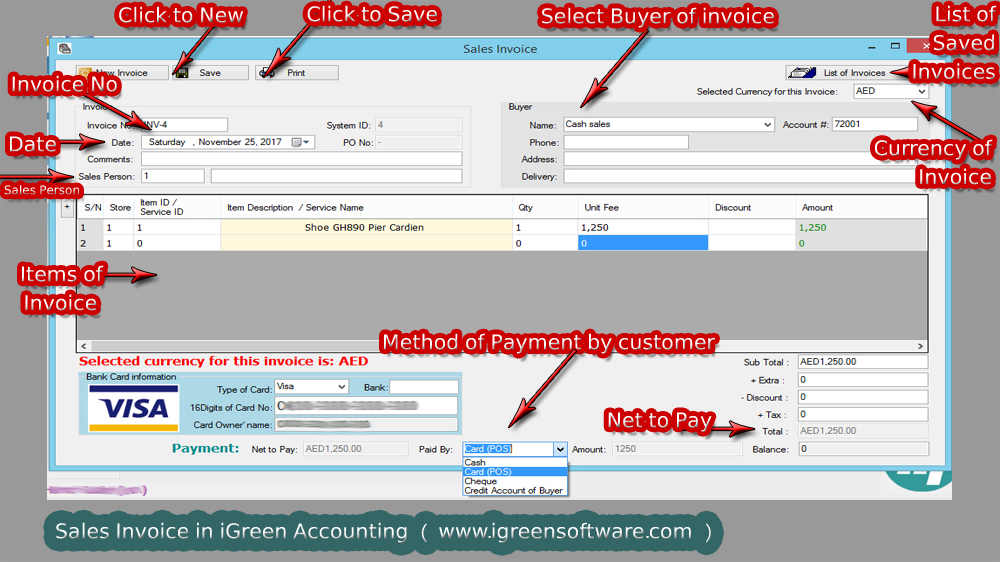
Invoicing in iGreen accounting is very easy to understand and you can issue and print sales invoices easilly. in this page you will see important section of invoice like:
Invoice No
Currency selection
Sales person
How to select buyer
How to Save and create new invoice
Sales Invoices in iGreen version 2.1.0.0
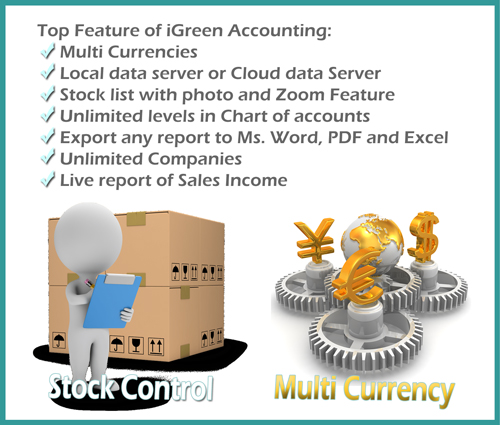
As you see, it is possible to issue any invoice in selected currency, so that you can issue invoices in different currencies for multi national customers. it is important to know later, in reports , iGreen will convert all invoices in different currencies in one currency based on currency rates that you will adjust in it.
By selecting account of salesperson you can mention commissions for your salespersons very.
How to select buyer
When you are issuing a new invoice, buyer of it could be a new customer or an existing customer.
New customer
if customer of invoice is a new, it is enough to type his/ her name in combo box and iGreen will create a new account number for his/her account in sales ledger instantly. Also you can specify Tel no, Delivery address and Address of new customer sames time after name.
Existing customer
if customer of invoice has been added before to iGreen accounting, so, it is easy to type a part of his/her name and iGreen will show a list of customers with matching to typed letters, so you can select it from a combo list by Down arrow key and press Enter key.
Inventory of items and products in all shops is very important. a clear and updated report of stock inventory will give you a calm of mind about your shop stock control. by entry of any purchase or invoice, this report will be updated instantly.
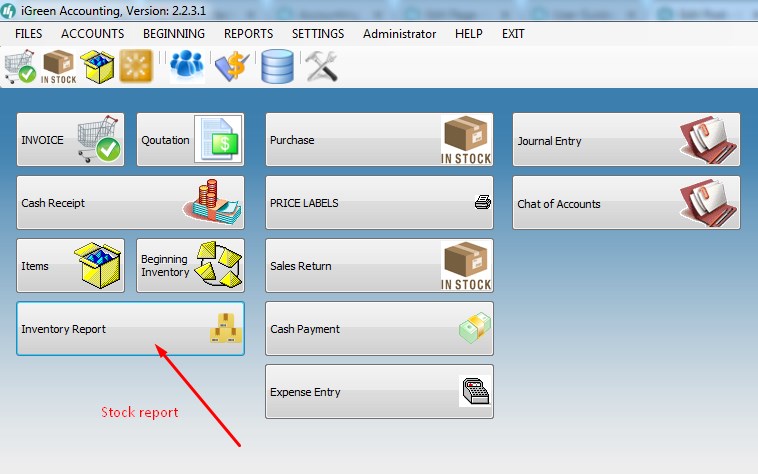
You can access to stock report by click on [Inventory Report] button as below:
Stock Report Menu
After you click on [Inventory Report], it will take a some-while of time about 1 to 5 minutes to finish its calculation. during this time, it shows you “Please wait”. and it will be ready as below:
STOCK REPORTIn this report you see two tables:
Up table is list of all items with details :
Description of items
Inventory column – It shows you current inventory of items in stock
Inventory of items in stock report
Quantity of Purchases and invoices – it shows total quantity of items
Profit & Loss Column – It shows you profit or loss of sales [This section is only available to Admin users]
If you click of any rows in upper table, you can see details of that item in below table:
By iGreen accounting software you can share financial data and accounts book between your operators and accountants easily via local servers or cloud servers.