In this video, you see a quick review of iGreen accounting software and its feature.

In this video, you see a quick review of iGreen accounting software and its feature.
iGreen, version 2.8 and up supports automatic backing data up with two folders:
1- A default backup on My documents
2- Selected folder by users
Please look at below movies for more information
Salespersons are important for business owners to sell more, but a good report of sales activity of salespersons could help managers to choose the best salespersons and promote them with good commission and gifts. in iGreen accounting, you can select sales person of invoices and you can adjust sales commission of each salesperson, so that you can have an accurate report of their activity and report of amount of sales commissions.
Video guides:
VAT number (or TRN number in UAE) is important to be printed in receipts, invoices and bills. as tax authority departments will fines you if there is no tax number on header of your prints.
You can put your Tax number (TRN number) in iGreen accounting software in on click only. please watch below video to see how to do it.
Note: Tax percent in UAE is 5% but in other countries maybe is different. please pat attention to this matter.
To print invoice in iGreen software, you can design a header file as your logo in head top section of paper. you can select a designed header for print in header of your invoices and receipts in iGreen software. This photo should be about 1600 X 200 pixel. to fit 100% percent in all top area of a A4 size.
Note: Any time you can remove and change this header logo from setting menu.
In this video, you will see how to select and adjust a header for invoice printing as your official invoice format.
We can design header logo for our customer without any extra charge. you should provide us information as below:
In this page, you can see how to Add item in iGreen accounting software, How to input purchases, How to issue invoice and How to see report of Sales profit, and Stock inventory. Please click on play button on each video to watch it.
Clothing stores in Dubai are available in any street, from Deira to Sheikh Zayed road and Dubai Marina district. purchase and sales in these stores should control by a inventory software to have a clear stock report. by hand it, it is not possible to trace an item on-time and easily. When you use iGreen software for inventory application in your business, it keeps any in-out of cloths without any mistakes or forgotten!.
By follow up steps as below, iGreen software is of the best pc software to help you manage your shops.
Note: Profit and loss of trading will be calculated instantly by iGreen software . you can check report of sales incoming in Reports/ Profit & sales in software.
In this video you can see how to add item codes and how to post purchase vouchers in iGreen software
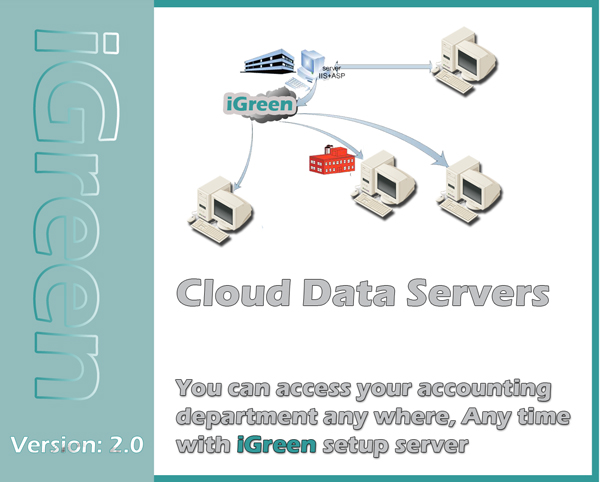
iGreen accounting software has 3 options for location of accounting data.
When you install iGreen accounting for the first time, it will install and setup local server automatically. but you can change server of data easily
Before you adjust server on other server of PC, this PC or server should have SQL server and enabled for remote access.
when your server is ready. you should have information as below
now you have all information that you can adjust server of iGreen accounting software.
In dashboard screen of iGreen accounting software, click on top menu and from setting menu click on server. os that, you will see a from as below:

Default Server 1 and Default Server 2 are for local pc, if you want to install iGreen on your laptop with out network or internet.
in top section , in yellow box, you should enter information of server and then click on [save] button. then iGreen will show you a [Server has been saved] and then it will be closed.
Now, when you run iGreen again it will create data and financial books on new server in less than a minutes.